The joy of designing the dreadful parts of software
Some of the most satisfying work I've done has been on the not-so-glorious underbelly of software. The tedious features that have to be in place for the rest of the machine to shine.
During my fifteen years of working on DoneDone, one of my proudest dream-ups is a feature that helps you set up auto-forwarding a Google email address into a DoneDone mailbox.
The hard part was that at the time, there was no Google API option to set up auto-forwarding. So any user experience would require said user to go off to Google's mail settings section—their own underbelly of their massive email enterprise.
But I still felt the process could feel friendlier and more guided. So, I ended up with a wizard-y approach.
It starts on this screen with a link that opens up Gmail in a new tab:
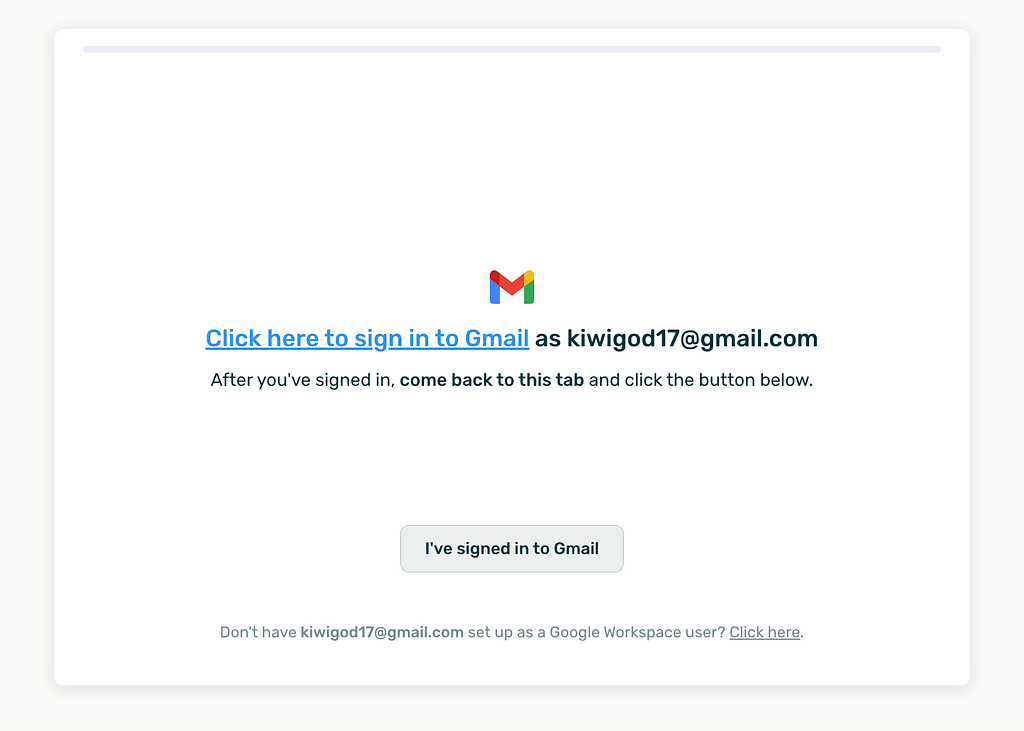
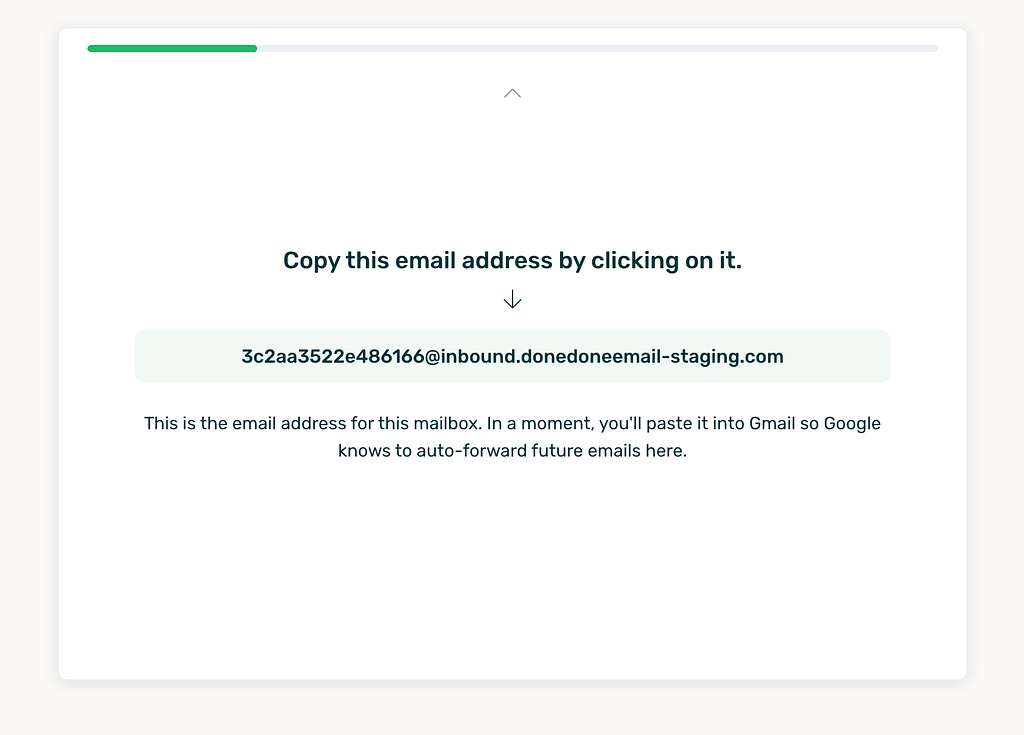
Once you've come back to this tab and clicked “I've signed in to Gmail”, the wizard slides to the next task—copying DoneDone's generated auto-forwarding address using Javascript's Clipboard class. Once you've clicked the email address, the email address is automatically copied, and the “Continue to the next step!” button slides into view:
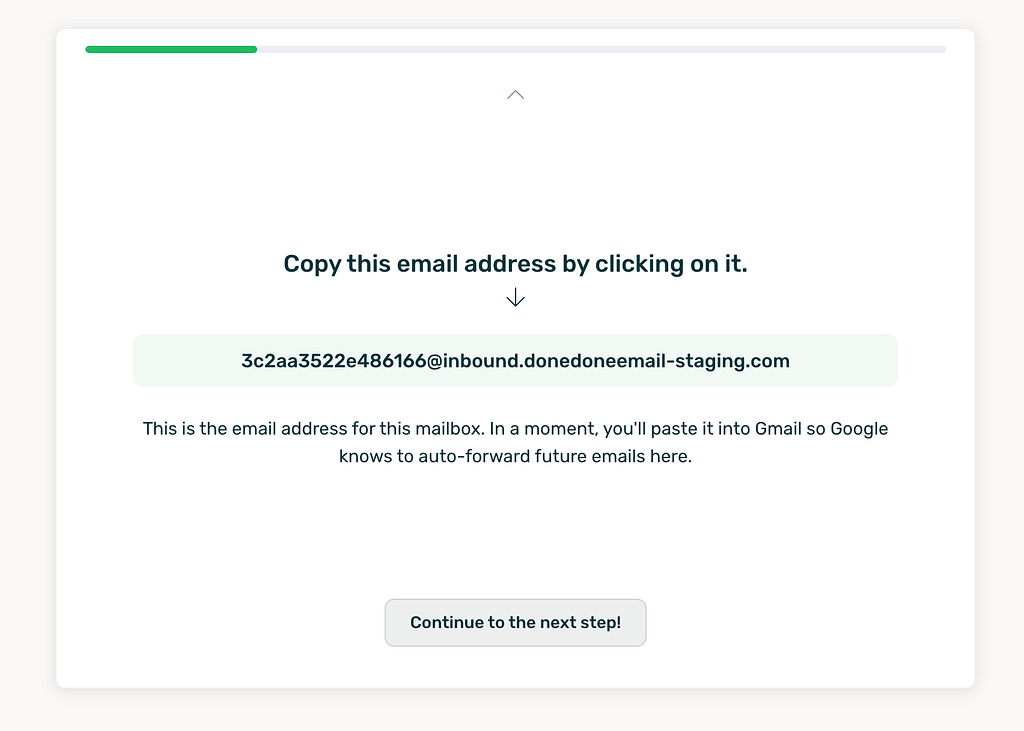
The next screen walks you through the process of adding the generated email address as an auto-forwarding address into Gmail, which then sends a confirmation link to that address ensuring you actually have access to the address you added.
This gets to an archaic part of Google's UI as it involves three distinct clicks (on “Next”, “Proceed”, and “OK”) to get the address added.
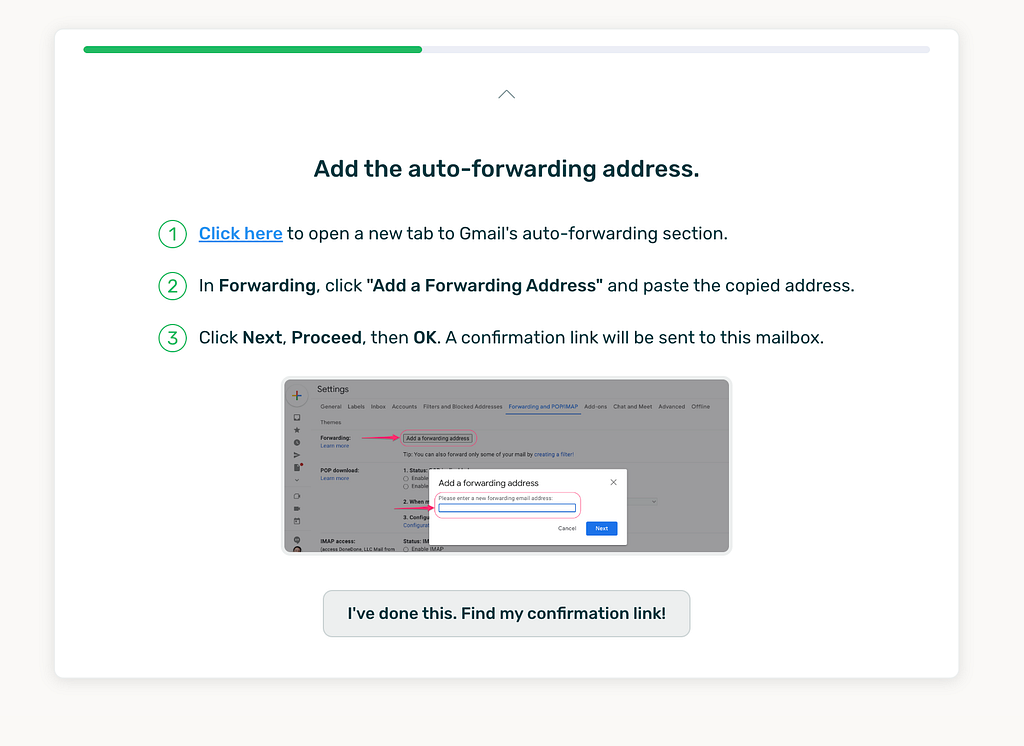
Sidenote: The one drawback to this screen is that it would have to get updated whenever Google changes the way you add an auto-forwarding address—even if the change were as minor as naming the button “Proceed” to “Continue”. But, the underbellies of software rarely get a facelift, especially if its part of a monstrous enterprise like Google. And I'm using that to my benefit here.
At this point, Google will send an email to the auto-forwarding address. In a typical scenario, the user would have to open yet another tab, log into the inbox of that address, find the email Google sent, and then click the confirmation link. But that opens up another opportunity where the guide could help that along.
Once the next screen slides in, the app runs a setInterval() method which make a call to our own API. The API call looks up the most recent emails received in that particular mailbox and parses out the contents of the emails to regex match against the Google generated confirmation link (e.g. starting with “https://mail-settings.google.com”).
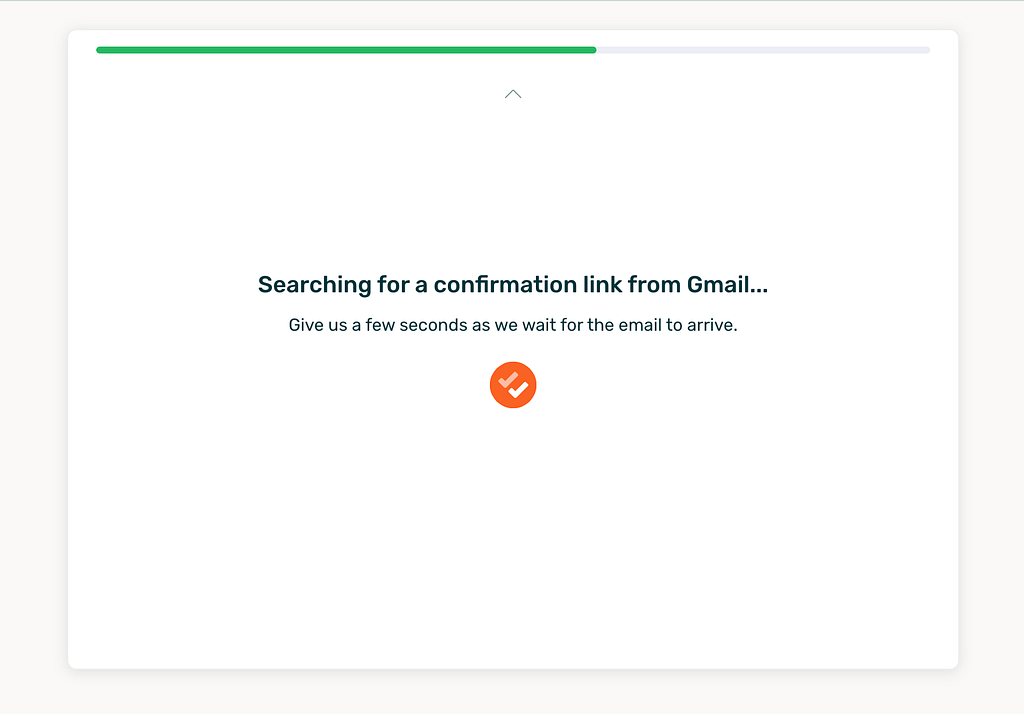
This continues every few seconds for a couple of minutes. If it never finds a match, the screen will flip to an error state, but in the expected happy case, we surface the link directly on the screen. The user just needs to click it and then hit the “Confirm” button on Google's side.
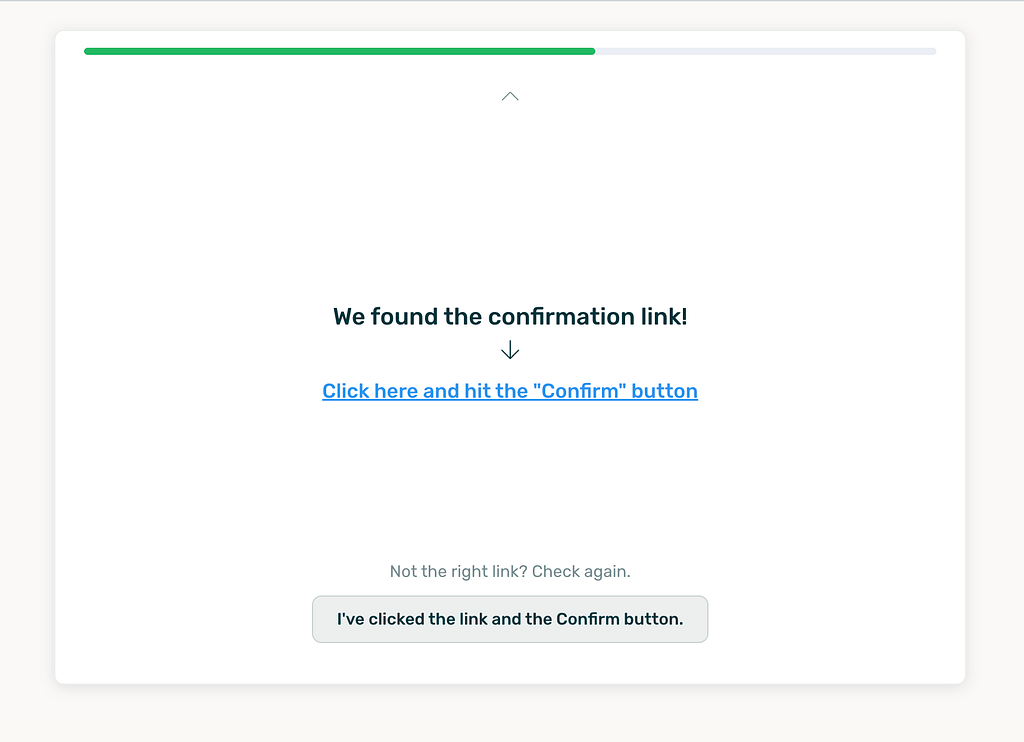
Most people will rightfully assume that the auto-forwarding work is done after this step. But Google has one more onerous bit here many miss.
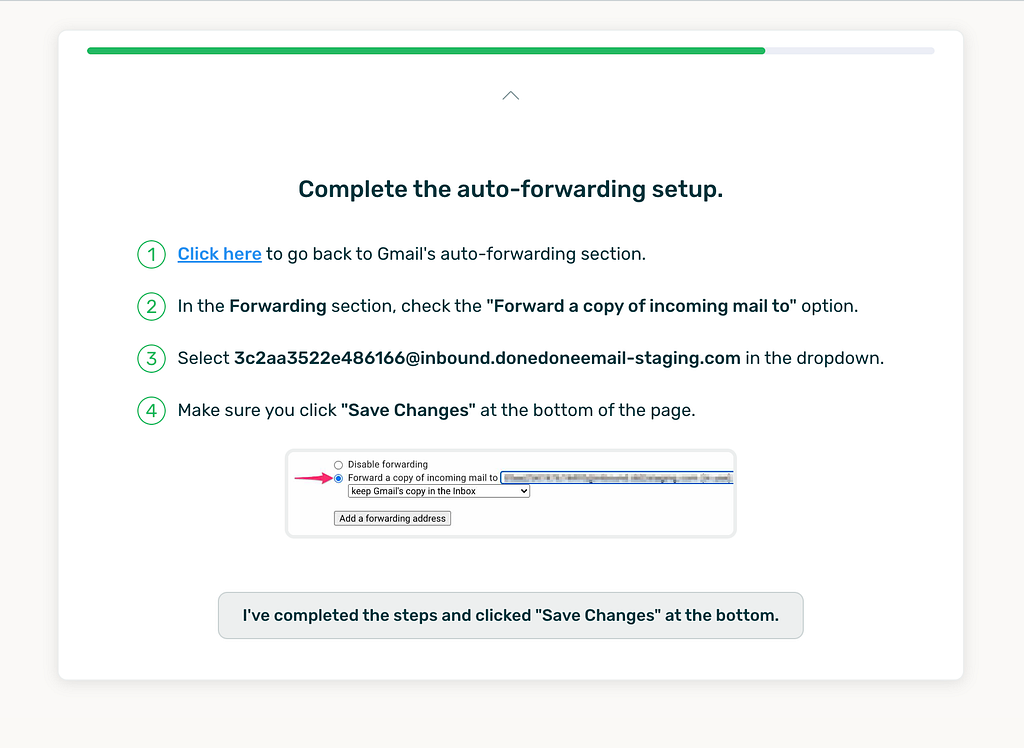
Google requires you to go back to your mail settings and manually grant the freshly added address as the forwarding address.
Once again, this is a process that hasn't been touched in their end for years—exemplified by the fact that you need to scroll to the bottom of the lengthy settings page to “Save changes.”
All of this is detailed on the next screen after you click “I've clicked the link and the Confirm button.”
Now, we've finished Google's auto-forwarding setup. As a final step, we test the complete loop on our side once a user clicks “Test that auto-forwarding is working!”
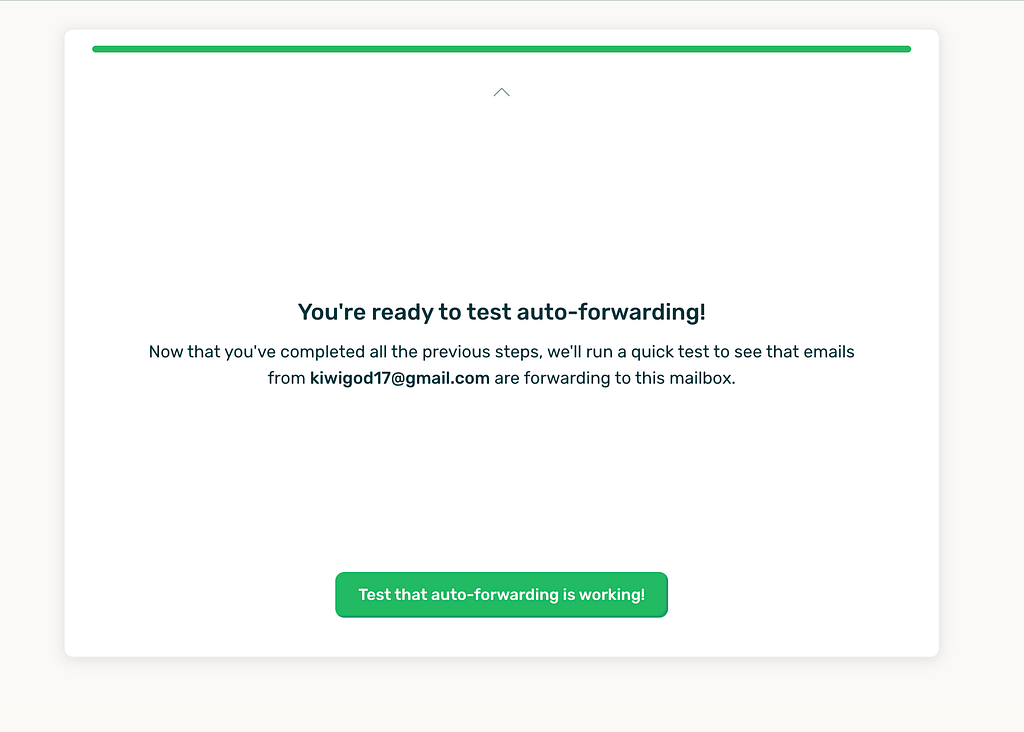
When a user clicks the button, an API call is made to send a test email to the Google-owned email address. Then, we start another setInterval() on an API method that waits for that email to land back on our side.
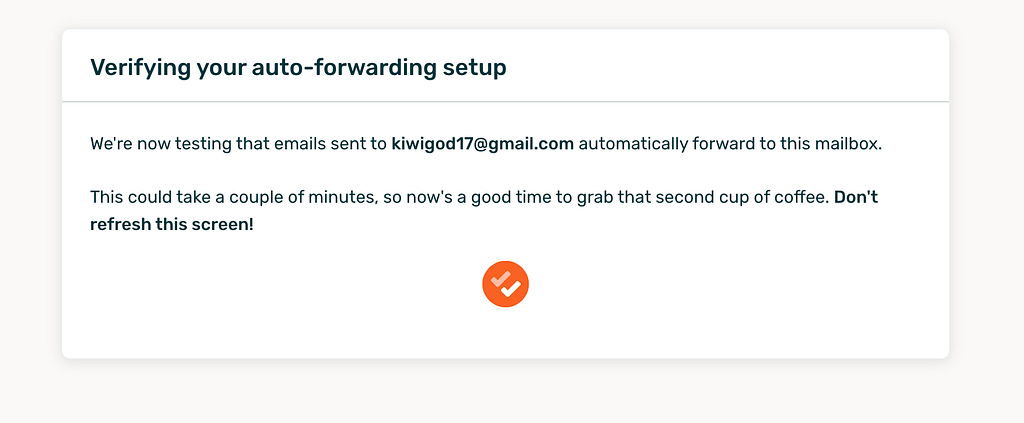
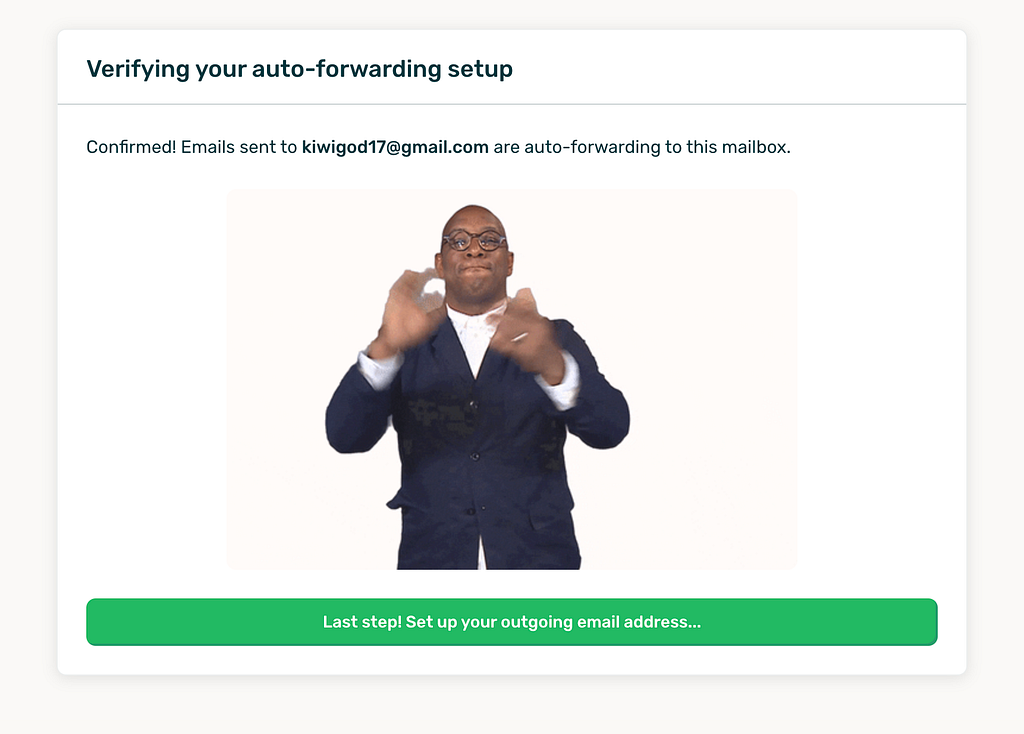
Once the email hits, we surface the success page. I thought I'd have fun with this and found a few congratulatory GIFs that the UI will randomly select from.
Most products that have a feature that requires auto-forwarding will include a help document on how to forward your Google mail their way, like this one from Help Scout. It's a tedious read because—well—the process is tedious.
But these are the opportunities I relish. The possibility of making something you'd expect to be drab just a little better. Handholding wherever it's possible.